Docker installation in EC2

Software developer with a passion for DevOps, I am committed to exploring and expanding my knowledge in this dynamic and rapidly-evolving field.
We are using Amazon Linux 2 OS for this. For reference
Connect EC2 instance in AWS
Create a security group that can allow all IPs to all ports. Create inbound and outbound.
Launch an EC2 instance with AWS Linux 2 and create key pair in ppk format
We are going to use Putty and Super Putty to connect our instances. You can use any SSH client to connect.
to connect any instance you need to provide
1. IP
2. Username
3. Password/private key
4. Port (SSH by default takes the port number 22)
Install Docker in AWS Linux 2
Update OS packages --> sudo yum update -y
Install Docker --> sudo amazon-linux-extras install docker
Start Docker --> sudo service docker start
Enable it --> sudo systemctl enable docker
Add user to docker group --> sudo usermod -a -G docker ec2-user
Just log out(exit) and log in again to run docker commands with normal users.
The container(mini server) is the running instance of the docker image
docker images --> will show the images available on the server
docker pull <image name>:version --> will pull the image from the docker hub( if you don't mention the version it will by default pull the latest version/tag
docker create <image-id> --> create container out of image
docker ps --> will show the running containers
docker ps -a --> will show all the containers ( including running/ created )
docker start <container-id> --> will start the container
docker inspect <container-id> --> will inspect the container & gives all info about container(IP address, etc)
docker stop <container-id> --> will stop the running of the container
docker rm <container-id> --> will remove/ delete the container completely
docker rmi <image-id> --> will remove/delete the images
docker run = docker pull + docker create + docker start
docker run <image-name> (nginx) --> will pull the image in the background, then will create a container out of the image & it can start it
docker run by default runs the container in the foreground and attaches to the screen.
docker run -d <image-name> --> de-attaches and runs it in the background
Now need to access the Nginx website from the browser, how to access it from the host mapping?
docker run -d -p 80:80 <image-name> (nginx) -->-p host port: container port (mapping to access server)
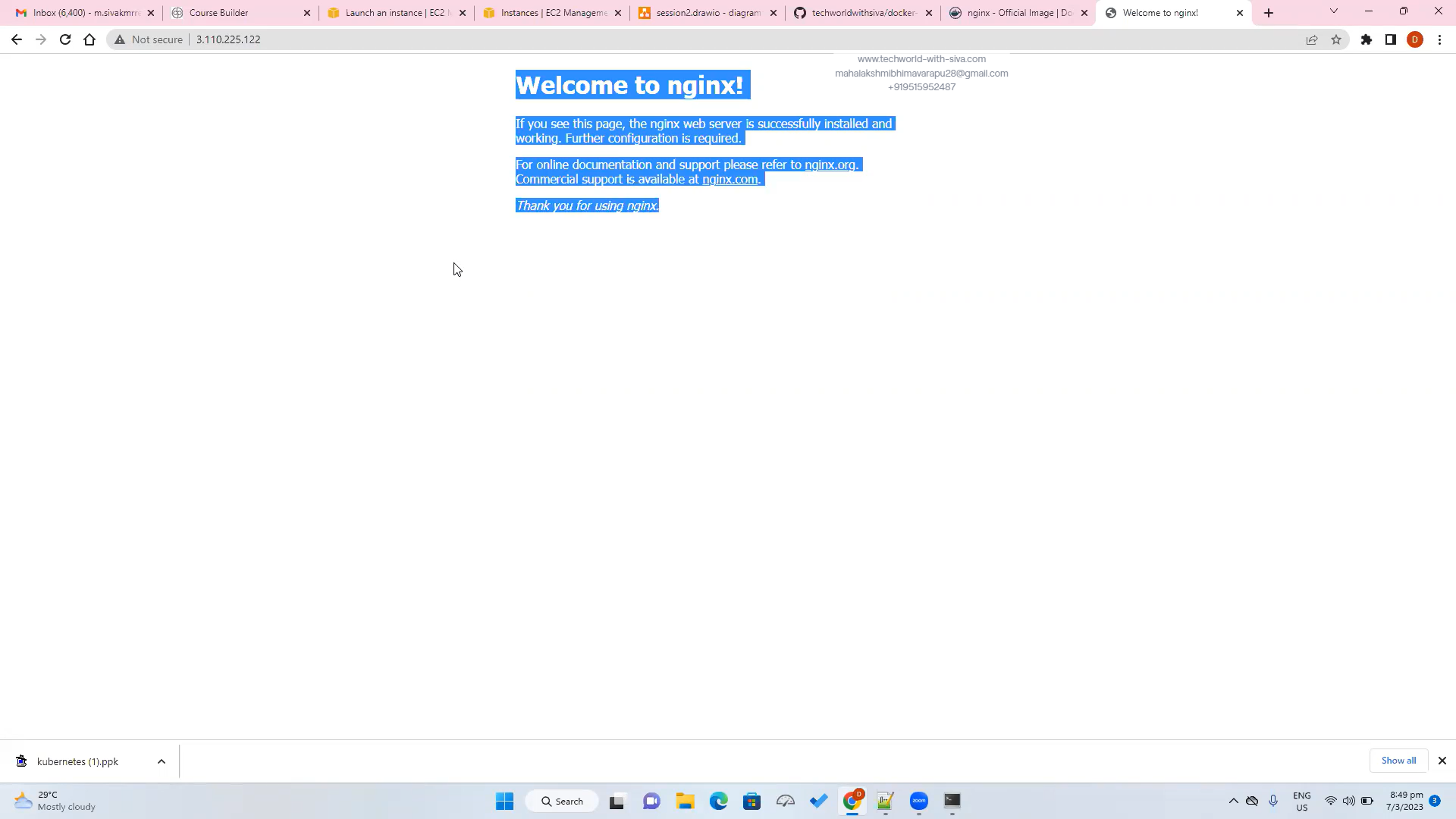
docker run -d -p 80:80 --name nginx-container nginx --> will name the container
Now want to log in to the container & see what is there inside it
docker exec -it <container-id> bash --> exec(execute it) -it(interact) with container & login into it with bash terminal
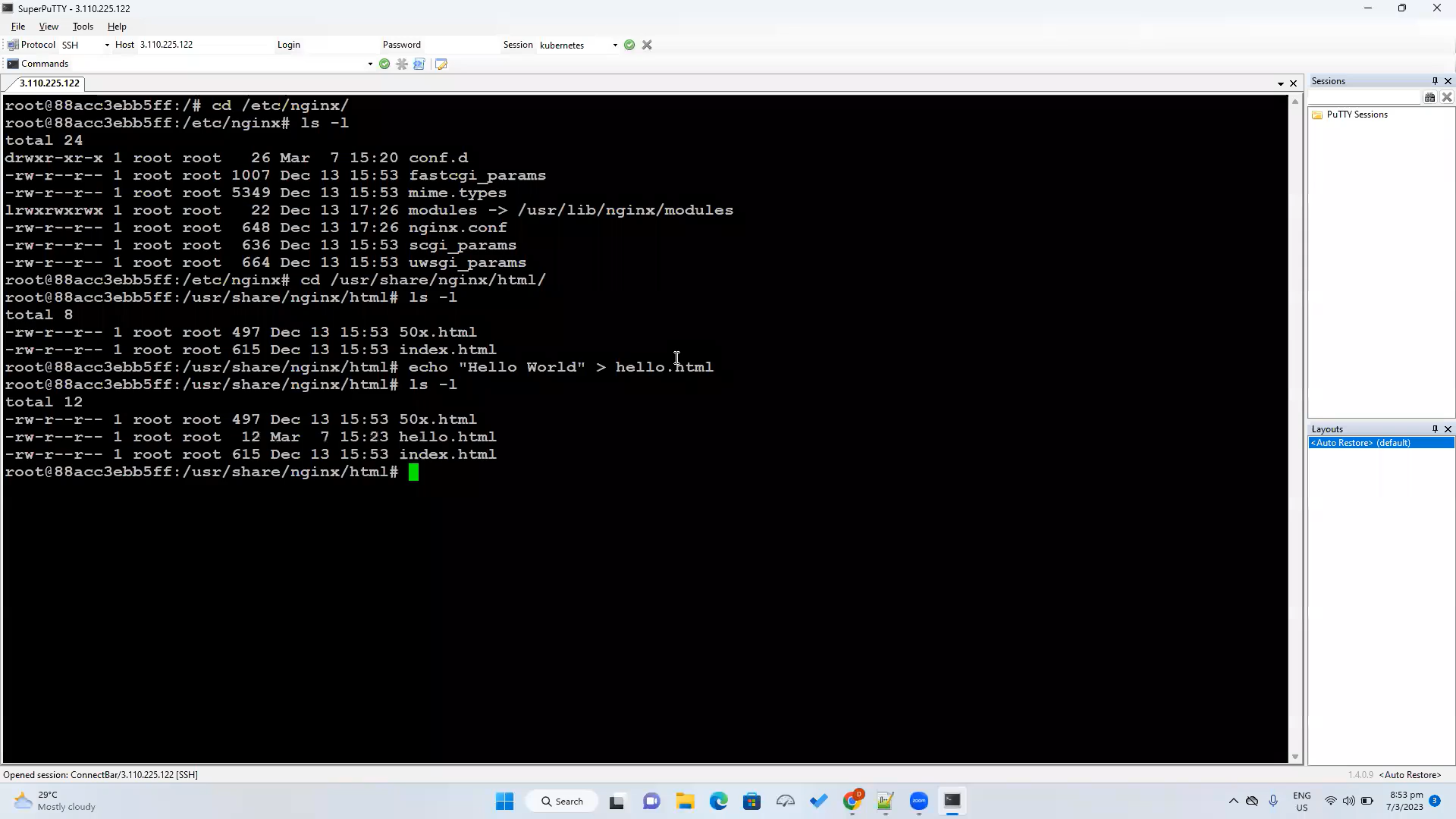

- ctrl + D --> to come out


